Back to Maintenance Manager for Manufacturing Main Menu
Creating a Preventive Maintenance Work Order
The Create WO (Work Order) feature allows Administrators and Technicians to manually create a preventive maintenance work order.
A preventive maintenance work order can be created in either of the following ways:
Method 1: Create a Work Order from the Preventive Maintenance list
-
Navigate to the
 (Preventive Maintenance) page.
 -
Search or hover over a preventive maintenance schedule in the preventive maintenance list.
-
In the preventive maintenance schedule row, click the
 icon.
icon. -
Click Create WO.
A confirmation message appears after the work order is created.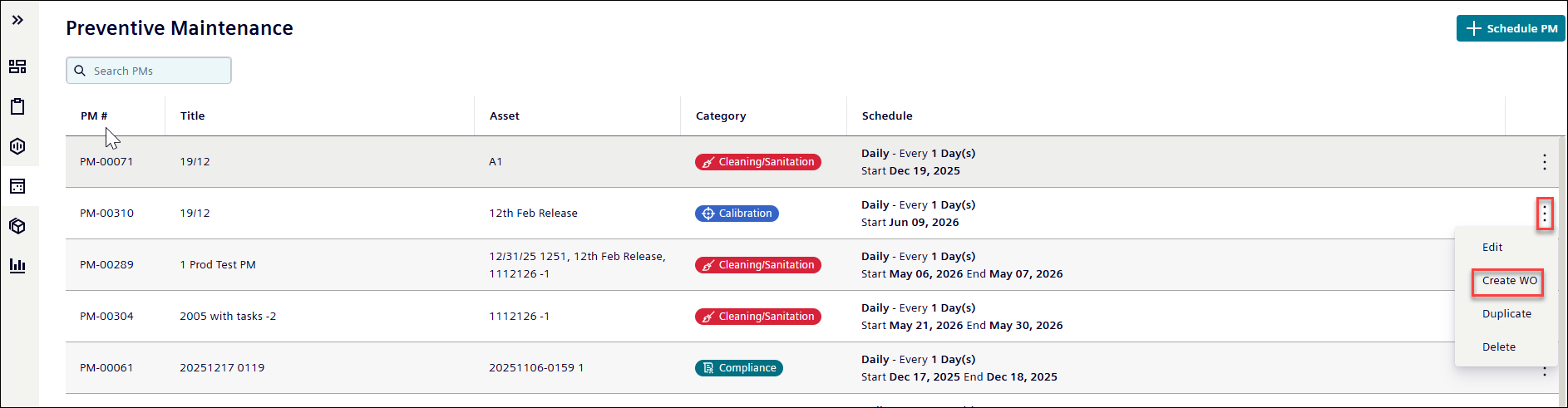
NOTE The new work order appears in the New section on the Work Orders page.
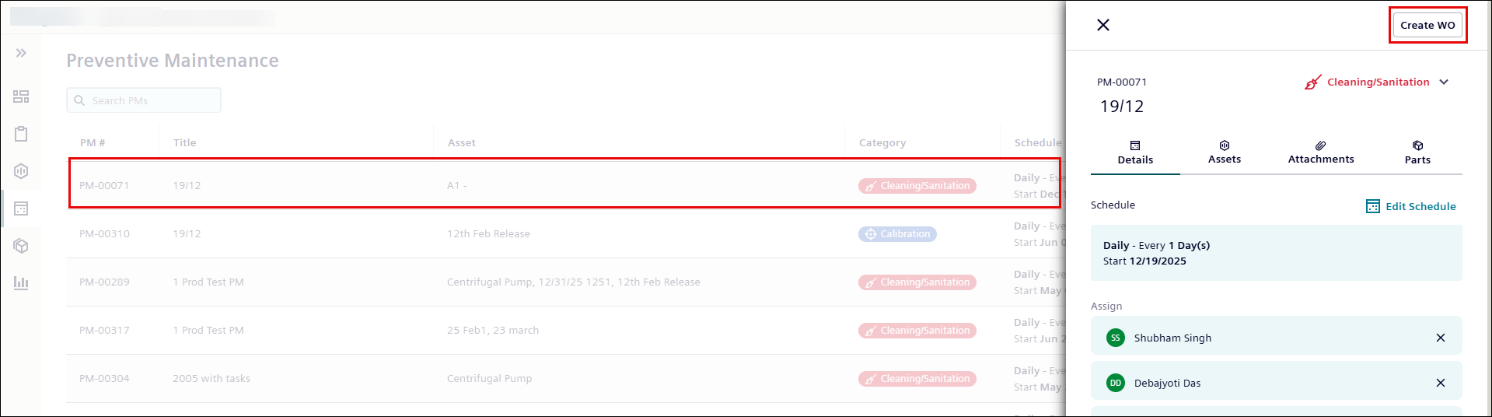
Method 2: Create a work order from the Preventive Maintenance details page
-
Navigate to the
(Preventive Maintenance) page. -
Click a preventive maintenance schedule to open its details page.
-
Click Create WO in the upper-right corner of the page.
A confirmation message appears after the work order is created.